In short
- A virtual office online is a space your team keeps open during the workday, so people can see who is around and talk without booking a meeting.
- You can approximate one with an always-open video link or chat huddles, or use a map-based virtual office built for it.
- A remote desktop and a virtual business address are different things. They do not give the team a place to meet.
If your team is remote or hybrid, you have probably felt the gap: chat is slow for a two-minute question, and a video call needs an invite. A virtual office online fills that middle ground. If you want the concept first, start with what a virtual office is. This guide is about the practical part: how to set one up.
One clarification before we start. In this article, “virtual office” means collaboration software for a team. It does not mean a rented business address or mail handling, which Capitown does not offer.
What your online office needs to do
Whatever the tool, a virtual office online should cover five things. Use them as a checklist when you compare the options below.
- 1Presence. You can tell who is working and who is free without asking.
- 2Starting a conversation fast. Few clicks between “I need to ask Ana” and talking to Ana.
- 3Focus. People can signal that they do not want to be interrupted, without disappearing.
- 4A place for rituals. The daily stand-up and team syncs have somewhere to happen without a new link each time.
- 5Clear privacy. Everyone knows who can get in and whether anything is recorded.
Option 1: An always-open video link
The simplest setup: create one meeting link and leave it open during the day. Zoom documents how to create a permanent meeting link, and Microsoft Teams lets a team start a meeting inside a channel that channel members can see and join. This is also the most common answer to “how to create a virtual office in Teams”.
- Works well for: small teams who already live in Zoom or Teams and want a “drop-in room” today.
- Where it falls short: everyone in the room hears everyone, so two people cannot talk quietly while others work. You cannot see who is available before joining. The room either feels empty or turns into one long meeting.
Option 2: Huddles inside your chat tool
Chat tools now include quick audio calls. In Slack, for example, you can start a huddle from a channel or a direct message, and the people in that conversation can join.
- Works well for: quick questions between people who already talk in the same channel.
- Where it falls short: presence is a list of names, not a place. Huddles depend on someone starting them, so the “walk past and say hi” moment does not happen. They are great for calls, but they are not an office.
Option 3: Remote desktop (and why it is not a virtual office)
Tools such as Citrix or Azure Virtual Desktop give people access to a computer or a work environment from anywhere. That solves access to systems and files, and it can be essential for security. It does not show you who is around or start conversations. If your search for “virtual office” led to remote desktop products, you probably need both, for different reasons.
Option 4: A map-based virtual office
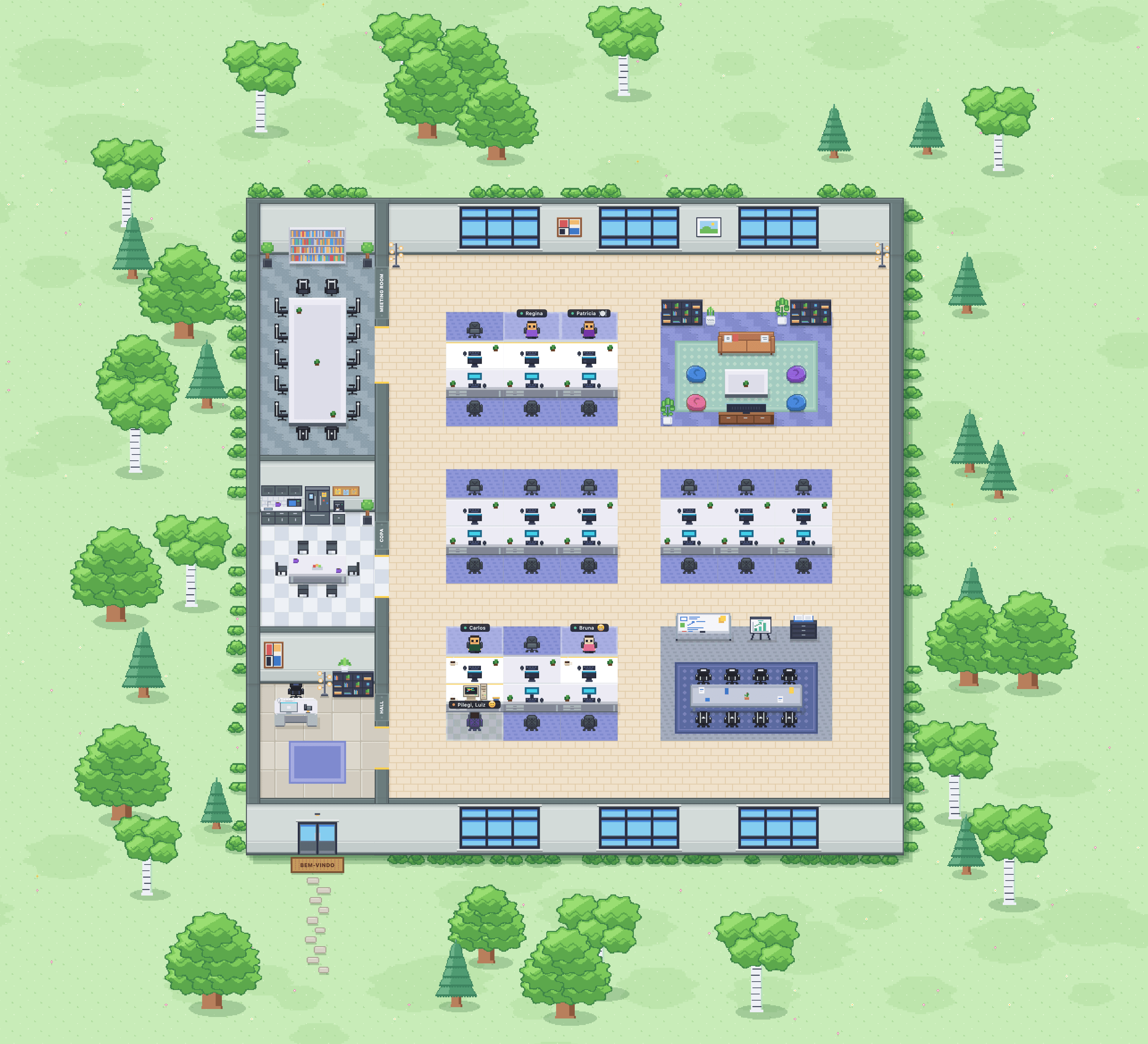
This is software built for the job: a persistent online space, usually a 2D map, where each person has an avatar and a desk. You see the team at a glance, and a conversation starts when you walk up to someone.
In Capitown, it works like this:
- You walk with the arrow keys, WASD or the mouse. When you get close to a teammate’s desk, the voice call starts. Walk away and it ends.
- You can turn on the camera and share your screen in the same conversation.
- The map has a meeting room. Everyone who walks in joins the same call, which is where the daily stand-up can happen.
- Status shows who is Active, Busy, Away or on Do not disturb. On Do not disturb you stay visible, but nobody pulls you into a call.
- A wave sends a notification to someone far away on the map.
- There is team chat with a general channel and direct messages.
- It runs in the browser and in the desktop app for Mac (Apple Silicon) and Windows. The Linux app is coming soon.
- Conversations are not recorded, and only invited people with an account can enter. The details are on the security page.
The full list is on the features page. If you are comparing products of this type, see how to choose virtual office software and our Gather Town alternative comparison.
The four options side by side
| Always-open video link | Chat huddles | Remote desktop | Map-based virtual office | |
|---|---|---|---|---|
| Shows who is available | Only who is in the room | A status in a list | No | Yes, on the map |
| Private side conversations | No, one shared room | Yes, one huddle per conversation | Not applicable | Yes, by walking up to a desk |
| Place for rituals | Yes, the same link | Yes, if someone starts the huddle | No | Yes, the meeting room |
| Focus signal | Leave the room | Chat status | Not applicable | Do not disturb, still visible |
| Feels like a place | Partly | No | No | Yes |
Most teams end up using more than one: chat for what needs a record, video calls for clients and large events, and a virtual office for presence and short conversations. We explain that split in Capitown, Slack, Google Meet and Zoom.
How to set up a map-based virtual office in one week
- 1Day 1: Create the space. Create an account, create the space and give it a name. You get a map for your team only.
- 2Day 1: Invite a pilot group. Send invites by email and pick each person’s role (Member or Administrator). Invites expire and can be cancelled. Start with a team that already works together, not the whole company.
- 3Day 2: Claim desks and set up avatars. Each person builds an avatar, claims a free desk and customizes it. Seeing the team “sit together” is what makes the map feel like an office.
- 4Day 2: Agree on status. Write down what Busy, Away and Do not disturb mean for your team, and when it is fine to walk up to someone. Our guide to status in remote work has a ready-made agreement.
- 5Day 3: Move one ritual. Run the daily stand-up in the map’s meeting room instead of a video link.
- 6Days 3–5: Use it for real work. Quick questions go to the desk, not to the calendar. Install the desktop app so the office does not get lost among browser tabs.
- 7End of the week: Review. Did quick questions get answered the same day? Did short internal meetings drop? Decide whether to expand, adjust or stop.
For a longer, structured pilot, follow how to adopt a virtual office in 14 days.
Mistakes to avoid
- Making presence mandatory all day. A virtual office is a place to find each other, not a timesheet.
- Moving everything at once. Start with one team and one ritual.
- Dropping chat and video calls. They still have their job. The virtual office covers the part of the day neither was built for.
- Skipping the status agreement. Without it, easy conversations turn into constant interruptions.
Conclusion
You can set up a virtual office online in an afternoon with a permanent video link or huddles. They are useful shortcuts, but they do not give the team a place. A map-based virtual office adds presence, private side conversations and a room for rituals, and it is the closest thing to sharing an office when everyone is far apart. Pick the setup that matches your team, test it for a week, and keep what works.
Frequently asked questions
How do I set up a virtual office online?
Choose a format (an always-open video link, chat huddles or a map-based virtual office), invite a pilot team, agree on what each status means, move one ritual such as the daily stand-up into it, and review after a week.
Can I create a virtual office in Microsoft Teams?
You can start a meeting inside a Teams channel and keep it open for the team to join, which works like an always-open video room. Teams does not show the team on a map or start a conversation when you walk up to someone.
Is a virtual office online the same as a virtual business address?
No. Here it means collaboration software for a team. A business address and mail service is a different product, and Capitown does not offer it.
Do we need to replace Slack, Zoom or Google Meet?
No. Chat keeps the written record and video calls stay for clients and events. The virtual office handles presence and short conversations inside the team.
Do I need to install anything to use Capitown?
No. It runs in the browser. There is also a desktop app for Mac (Apple Silicon) and Windows, and the Linux app is coming soon.
Is a remote desktop a virtual office?
No. A remote desktop gives access to a computer or work environment. A virtual office gives access to people: it shows who is around and lets you talk right away.