At the office, nobody had to ask if a colleague was free. Headphones on, a focused face, an empty desk, someone standing with a coat in hand: every detail said “come on over” or “not now.” Remote work erased that signal. What is left is the “got 5 minutes?” message, which interrupts just the same, only without context.
Status is the simplest way to bring that signal back. In this article, we explain why it matters for remote and hybrid teams, which kinds of status exist, and how to use Capitown’s presence features to balance availability and focus without adding yet another annoying rule.
Why status matters so much in remote work
Interruptions have a cost. After being pulled out of a hard task, it takes a while to get back to the same level of focus. At the same time, being stuck waiting for an answer is expensive too. The problem is not talking: it is talking at the wrong moment, without knowing if the other person can.
Well-used status solves both sides. Whoever needs to talk knows whether to stop by now or send a message instead. Whoever is focused does not have to explain themselves or guiltily ignore notifications.
- Fewer “you there?” pings: availability is visible before the question.
- Protected focus: people doing deep work can signal it without disappearing.
- Clear expectations: everyone knows when to expect an instant answer and when not to.
- More trust: the team sees the person is working, even when they are not replying.
Two kinds of status: presence and context
It helps to separate two things. Presence status answers “can I talk to you now?”. Custom status answers “what are you working on?”. Together they give you the full read a colleague’s desk used to give.
Presence status in Capitown
| Status | What it means | How it shows on the map |
|---|---|---|
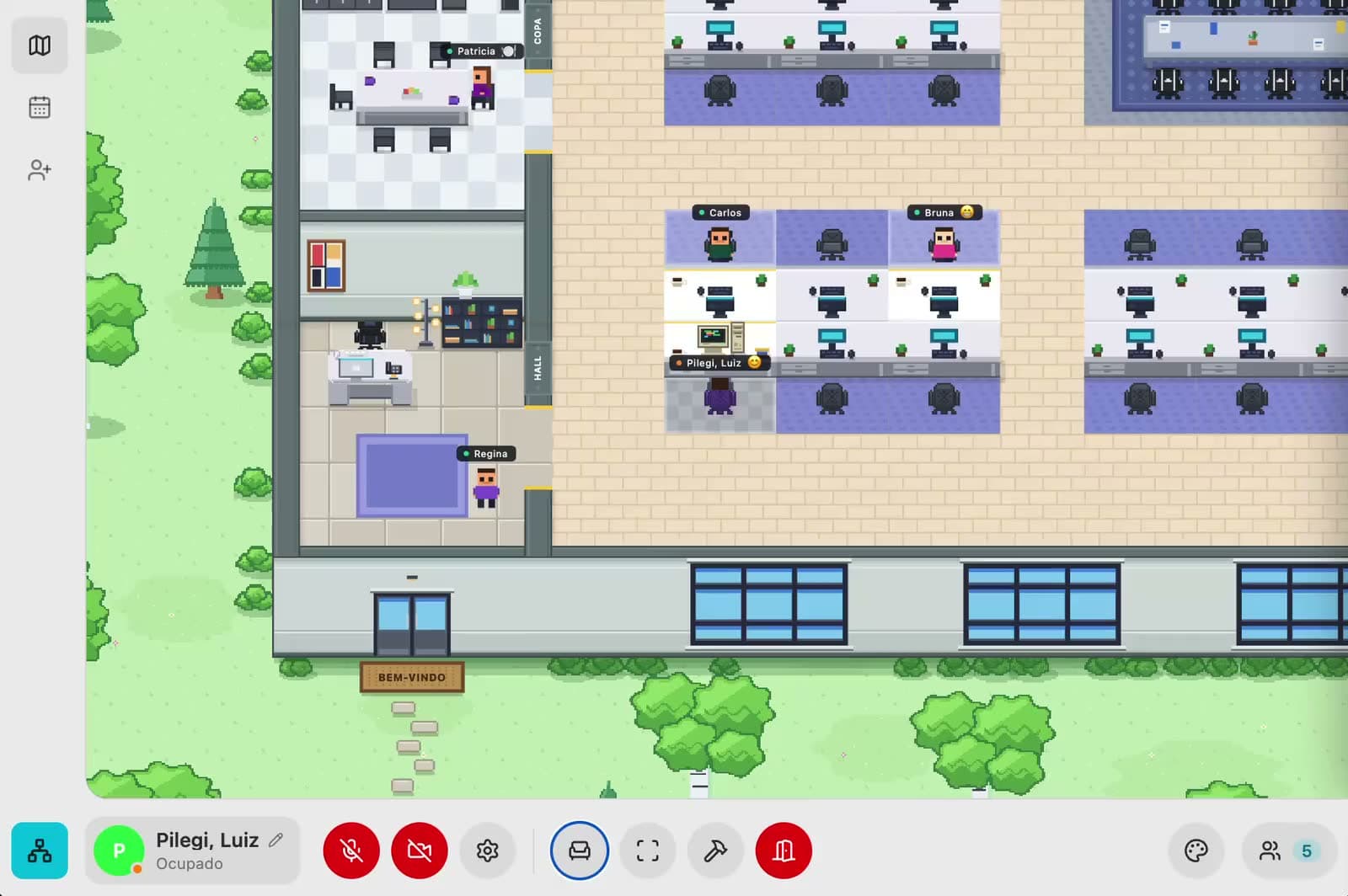
| Active | Available to talk. Walk up and the voice conversation starts. | Green dot and an avatar that moves freely. |
| Busy | Working on something that needs attention, but you can still reach out if it matters. | Orange dot and an avatar wearing headphones. |
| Away | Away from the computer: lunch, an appointment, school pickup. | Red dot. The avatar stays in the office but does not move, join conversations, or receive waves. |
| Do not disturb | Deep focus or an external meeting. No interruptions. | Red dot, with the same behavior as Away. |
Note one detail: in Capitown, Away and Do not disturb do not remove you from the map. You stay visible in the office with the right status, so the team knows you are around, just not available. It is the digital version of a coat on the chair.
Custom status with emoji
Presence status says whether you can be reached. Custom status says why. You pick an emoji and write a short description, such as “🎧 Reviewing the checkout PR”, “🍽️ Lunch, back at 1:30pm”, or “📞 Client call until 3pm”.
- The emoji shows on your avatar’s badge, so the team understands the context at a glance.
- Hovering over someone’s avatar shows a balloon with the full status description.
- With “Clear after...” you choose when the status goes away on its own: 1 minute, 30 minutes, 1 hour, 4 hours, or at the end of the day.
That last point looks small, but it fixes the most common status problem: the “Lunch” that stays up until 6pm because nobody remembered to clear it. With automatic expiration, your status stays truthful with no effort.
When you cannot walk over: the wave
Sometimes the person is on the other side of the map, or you would rather not “show up” at their desk out of nowhere. That is what the wave is for: a discreet heads-up that you want to talk. They get a notification, even in the desktop app with the window in the background, and decide when to come over.
And the wave respects status. People who are Away or on Do not disturb do not receive waves, and you see that before you try. There is also a short cooldown between waves to the same person, so nobody becomes the office doorbell.
5 status agreements for your team
A tool without agreements is just decoration. These simple rules work well for most remote and hybrid teams:
- 1Active means “come on over.” If you are Active, a quick chat at your desk is welcome, no need to ask permission in chat first.
- 2Busy means “only if it matters.” Questions that can wait go by message; real blockers can go to the desk.
- 3Do not disturb is sacred. Nobody chases you on another channel. For true emergencies, the team agrees on which channel to use.
- 4Custom status with a return time. “Lunch, back at 1:30pm” beats just “Lunch.” And use “Clear after...” so you do not forget.
- 5Leads set the example. When leads use Do not disturb to focus and respect everyone else’s, the rest of the team feels free to do the same.
Status helps management without becoming surveillance
For leads, seeing “🎧 Busy” on half the team is valuable: you can pick a better moment to start a conversation, notice who is overloaded, and avoid booking meetings on top of people’s focus blocks.
But status is a communication signal, not a metric. Capitown shows presence and status like you would see by looking around the room, and nothing more: it does not capture screens, count clicks, or record conversations. Using status to police “time online” destroys exactly the trust it is meant to build.
“A good status answers the question before anyone has to ask it.”
How to get started in Capitown
- 1On the map, click your name in the bottom-left corner to open the status and account menu.
- 2Pick Active, Busy, Away, or Do not disturb.
- 3In Set your status, choose an emoji, write a description, and select when the status should clear.
- 4Hover over your colleagues’ avatars to see what each of them is working on.
Conclusion
Remote work does not have to choose between a team that is always interrupted and a team that never talks. With clear presence status, a custom status that clears itself, and a few simple agreements, everyone controls their own focus and knows when they can reach out. It is the read of the room, back for your team.
Want to try it with your team? Create your space with a 14-day free trial and use it in the browser or in the app for Mac and Windows.
Frequently asked questions
What is the difference between Busy and Do not disturb in Capitown?
On Busy you can still walk around the map and be reached for a conversation, and your avatar wears headphones. On Do not disturb you stay visible in the office, but you do not move, join conversations, or receive waves.
Does the custom status clear on its own?
Yes, if you want it to. When setting your status, choose in “Clear after...” between 1 minute, 30 minutes, 1 hour, 4 hours, or Today. You can also clear it at any time.
Where does the team see my custom status?
The emoji shows on your avatar’s badge on the map. The full description appears in a balloon when someone hovers over your avatar.
If I am Away, do I leave the map?
No. You stay visible in the office with the Away status, so the team knows you are around, but you are not available for conversations and do not receive waves.
Is status used to measure productivity?
No. Status is there to communicate availability. Capitown does not capture screens, count clicks, or record conversations.