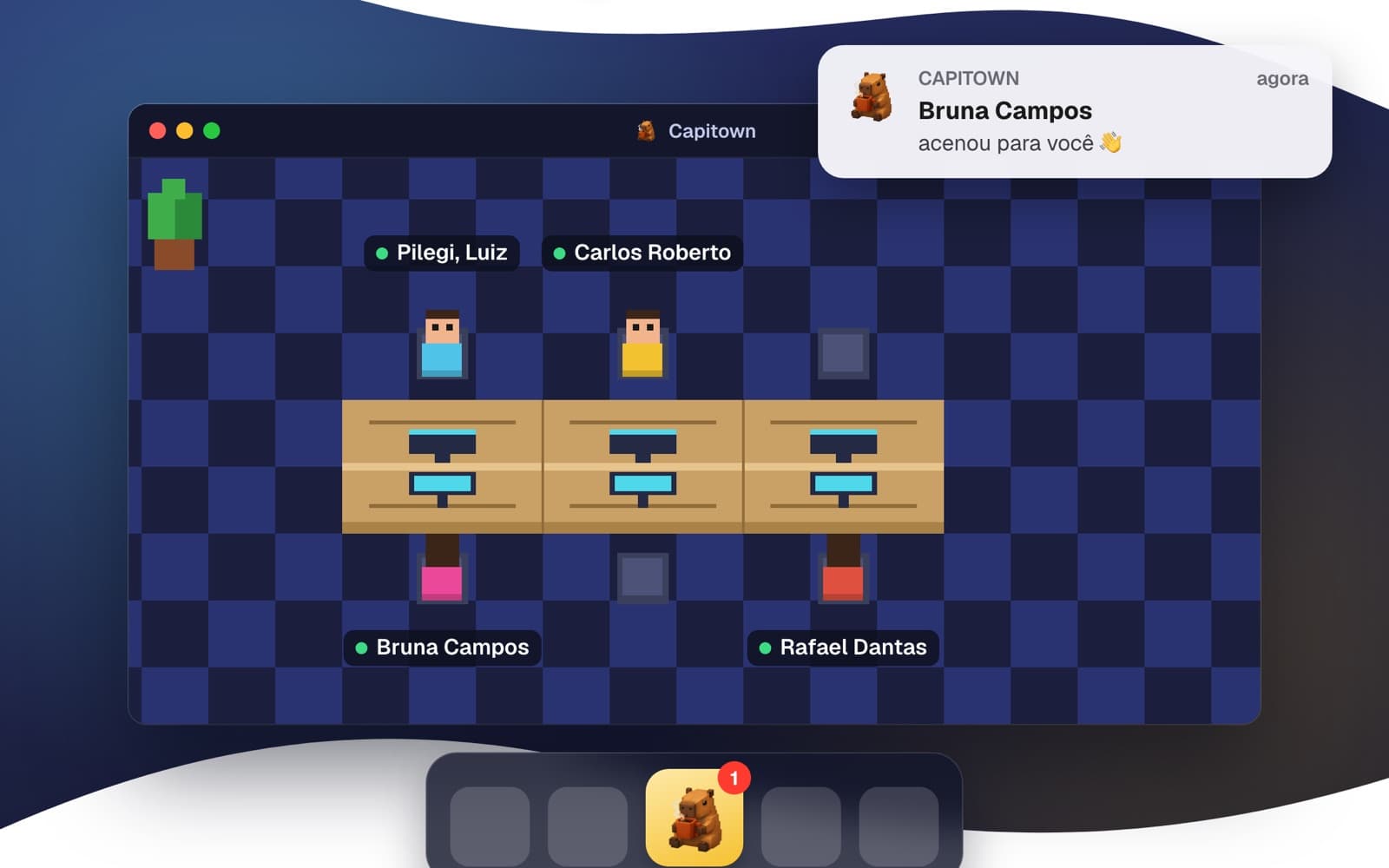
If you spend the whole day at your computer, you know the scene: twenty open tabs, email in one, a doc in another, a meeting in a third. When your team’s office is just one more tab, it is easy to lose track of it, along with the conversations that should happen right away.
That is why we built the Capitown desktop app for Mac and Windows. It is the same virtual office you already use in the browser, with the same account and the same map, but with a permanent spot on your computer. In this article we show what changes and why it is the best way to use Capitown every day.
What is Capitown’s desktop mode?
The desktop app is Capitown’s own window, installed on your computer. It opens the same virtual office as the browser, so everything you know stays the same: the map, the desks, proximity conversations, chat, and the meeting room. The difference is how it lives alongside the rest of your computer.
There is no separate plan and no extra cost: the app is part of every Capitown plan. Download it, sign in with your account, and find your team where it always is.
8 benefits of using Capitown in the desktop app
1. Your office one click away, never lost among tabs
On a Mac, Capitown sits in the Dock. On Windows, in the taskbar. Getting back to the office takes one click or a window switch, with no hunting for the right tab. And if you close the browser to “clear your desk”, the office stays open.
2. Native wave notifications
When a teammate waves at you on the map, the app shows a system notification, just like email or calendar alerts. Click it and the Capitown window comes to the front. If the window is hidden behind others, the icon bounces in the Mac Dock or flashes in the Windows taskbar. Nobody is left waiting because a tab was forgotten.
3. Stable conversations, even when minimized
Browsers often save resources on background tabs, which can delay alerts and updates. In the desktop app, Capitown stays active even when minimized or covered by other windows: waves ring right away and calls stay solid while you work in another program.
4. Screen sharing with the system picker
Need to show a teammate something? In the app, screen sharing uses the system’s own picker on recent macOS versions, so you choose exactly which window or screen to share. Microphone and camera ask for permission once, the native way.
5. Better focus: one window for teamwork
Separating the office from the browser helps separate contexts. One window holds your team; the browser holds research, docs, and everything else. Combined with the Do Not Disturb status, you decide when you are open to talk and when you need quiet, without disappearing from the map.
6. The window right where you left it
The app remembers the window’s position and size, including whether it was maximized or full screen. If you keep Capitown on a second monitor, it opens right there next time.
7. Secure sign-in through the browser and a locked-down app
You sign in through your default browser, where your password manager and Google sign-in already live, and it returns to the app on its own. Inside, the app only opens Capitown pages: external links, such as checkout, open in the browser, and microphone, camera, and notification permissions apply only to the office. Learn more about how we protect your team on the security page.
8. Always up to date, nothing lost
The map and features load straight from Capitown, so new features reach the app as soon as they ship. When a new version of the app itself is out, it lets you know, and you just install it over the current one: your account and spaces stay the same.
Desktop app vs. browser
Capitown still works in the browser, and you can switch between the two whenever you like. Here are the differences:
| Browser | Desktop app | |
|---|---|---|
| Where it lives | One tab among many | Mac Dock or Windows taskbar |
| Wave alerts | Browser notification, if the tab is open | Native notification, with a bouncing or flashing icon |
| In the background | The browser may slow the tab down | Stays active, even minimized |
| Window | Mixed in with your browsing | Its own, with position and size remembered |
| Installation | None | A quick download, no admin rights needed on Windows |
Requirements and how to install
- Mac: Apple Silicon (M1 or newer) and macOS 13 or later.
- Windows: Windows 10 or 11, 64-bit (x64). It installs per user and does not ask for an admin password.
- Intel-based Mac: for now, use Capitown in the browser.
- 1Go to the download page and pick Mac or Windows.
- 2Open the downloaded file and follow the installer.
- 3Open Capitown, click to sign in, and finish signing in in your browser.
- 4Done: the app comes back on its own and drops you on your team’s map.
“Your team’s office should not be hidden in a tab. In the app, it is always one click away.”
Conclusion
The desktop app does not change what Capitown does, it changes how present it is in your day. With the office in your Dock or taskbar, native notifications, and conversations that do not fade in the background, it is easier to stay close to your team without losing focus.
Not using Capitown yet? Create your team’s space with a 14-day free trial and install the app for Mac or Windows. See also all the virtual office features.
Frequently asked questions
Is the Capitown desktop app paid?
No. The app is included in every plan at no extra cost. You sign in with the same account you use in the browser.
Do I have to choose between the app and the browser?
No. It is the same office and the same account. You can use the app on your work computer and the browser on another machine, for example.
Which systems are supported?
Macs with Apple Silicon (M1 or newer) running macOS 13 or later, and 64-bit Windows 10 or 11. On Intel-based Macs, use Capitown in the browser.
Does the app work when minimized?
Yes. Capitown stays active when the window is minimized or behind other windows, so waves arrive right away and calls are not interrupted.
How do I update the app?
When a new version is out, Capitown lets you know. Just download it and install it over the current one: your account and spaces stay the same.